01 / Overview
What is UpToMed?
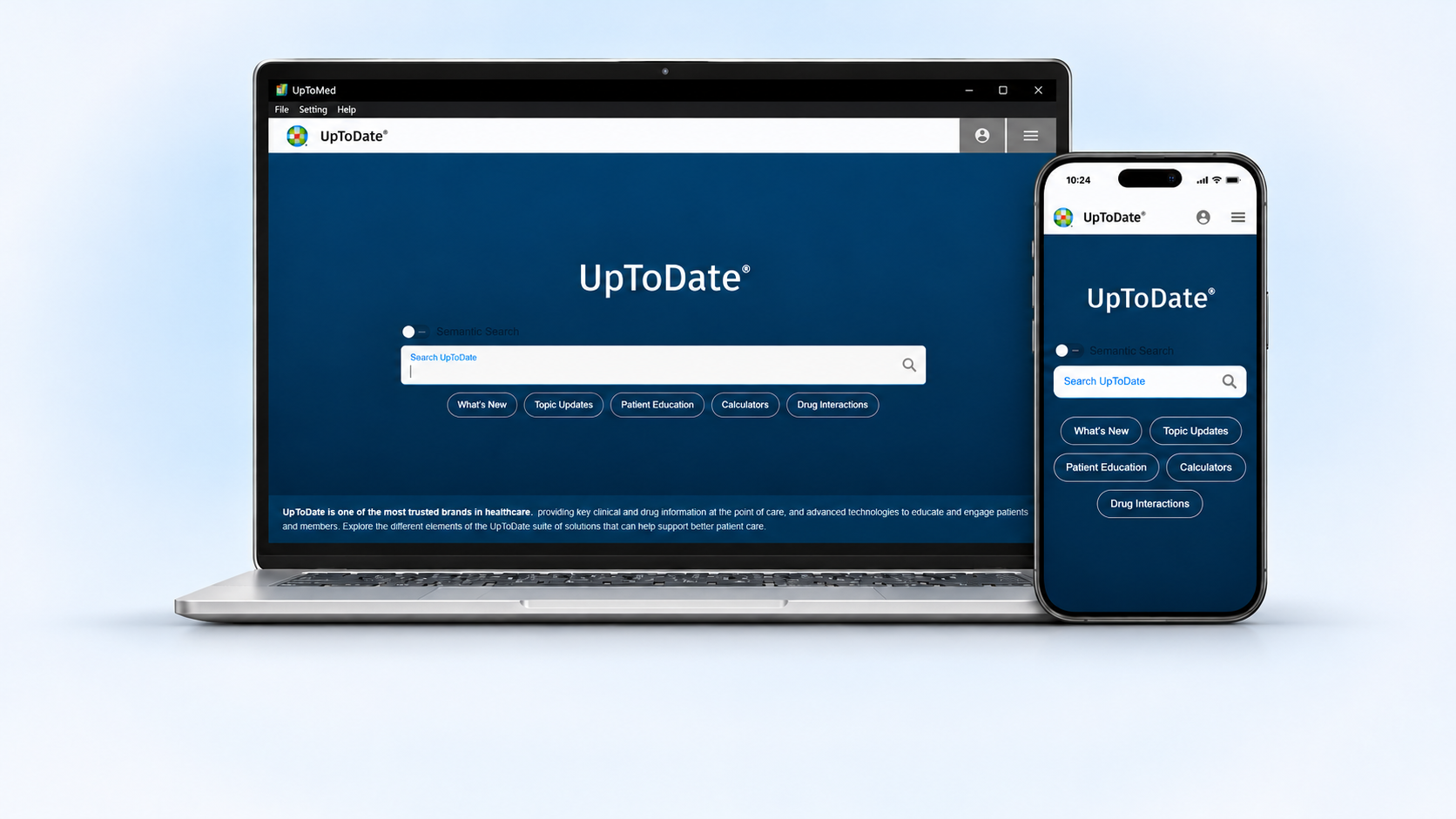
Uptomed; Uptodate Replicated! provides access to UpToDate Topics, through an alternative access platform, with like features and enhancements developed by our team.(the original UpToDate software costs approximately $500)
With Uptomed, you can access UpToDate through ,Mobile phone, Windows and any web browser on any device.
02 / Installation
How do I install UpToMed on Windows?
UpToMed for Windows is an offline application for accessing UpToDate content and serves as an affordable mirror of the original UpToDate software . In this version, we provide topics offline, while search and some tools still require an internet connection.
1.Get the Windows installer
The installer is available on Top of this page
2.Open the setup file
Run the downloaded .exe file and follow the installation prompts. Once installation is complete, open UpToMed.
3.What if Windows displays “Windows protected your PC”?
The supplied screenshots show a SmartScreen warning for an unrecognized app and an Unknown publisher . Verify that the installer came from the intended UpToMed source before continuing.
A. Select More info to inspect the installer details.
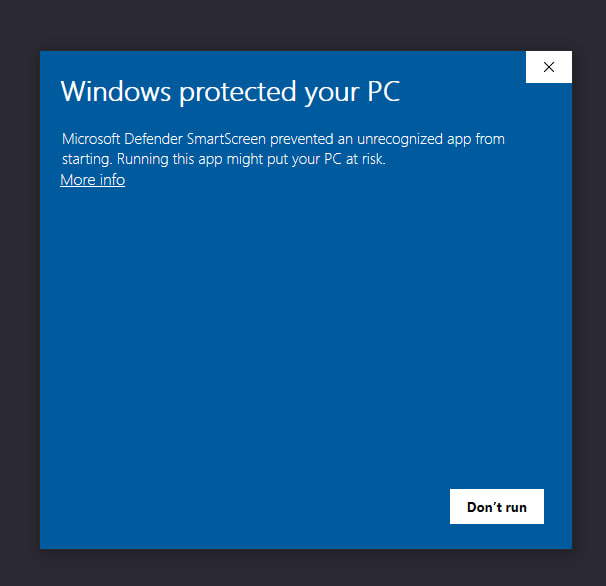
A. Select More info to view the installer details.
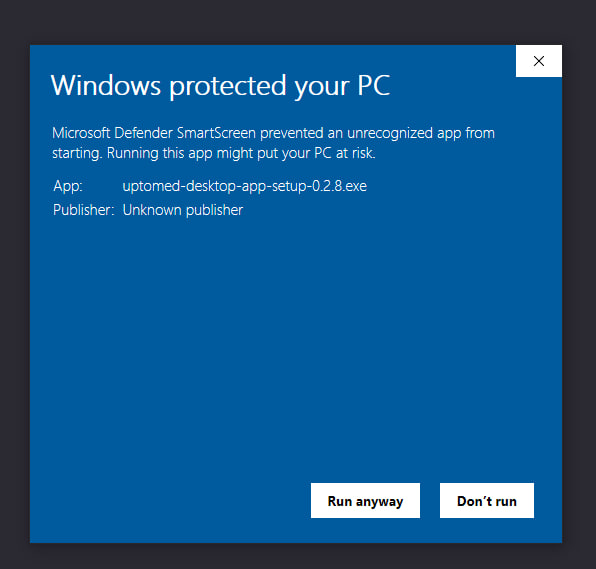
B. Now select Run anyway.
03 / Everyday use
How do I search for and open a topic?
- Connect to the internet, open UpToMed, and use the Setting menu to select Online Mode . Search requires an internet connection.
- Enter a clinical term or topic title in the main search field, for example hypertension.
- Submit your search using the search icon, then select the relevant topic from the results.
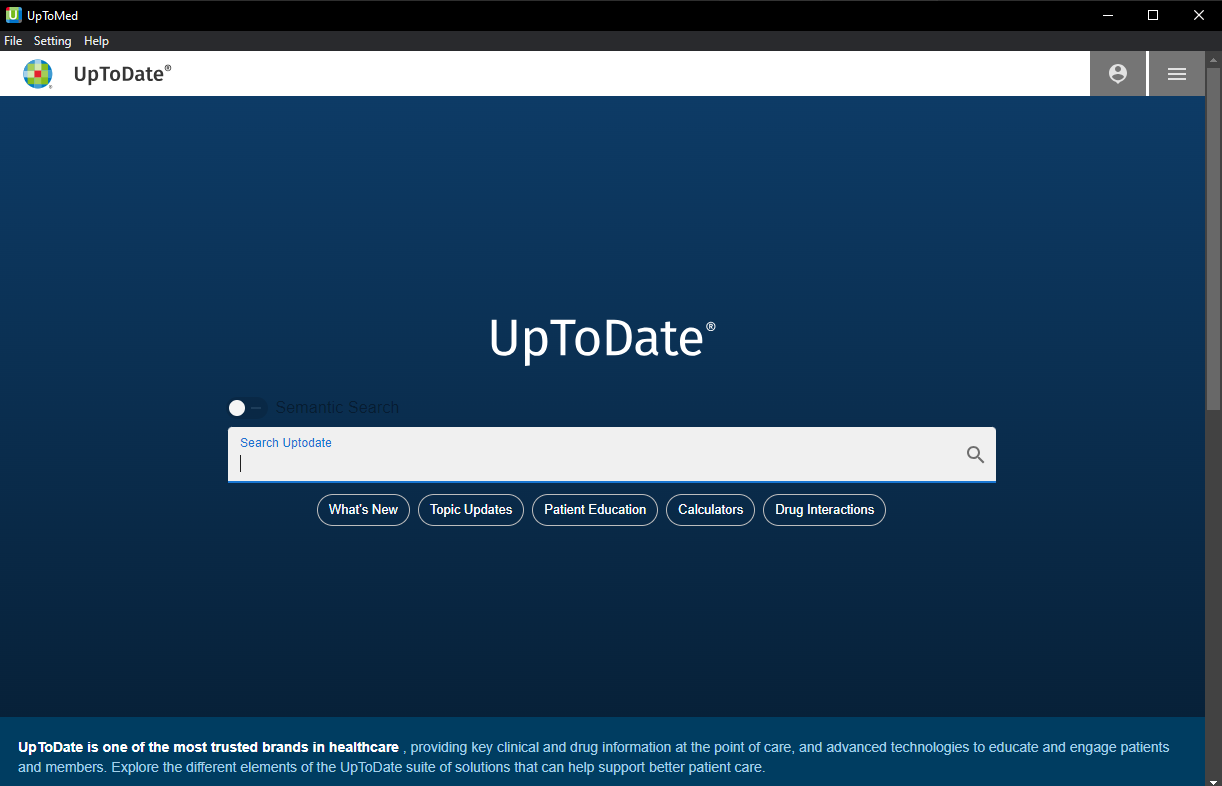
The main search field is in the center of the home screen. Click any screenshot in this guide to enlarge it.
04 / Offline access
How do I download the database and work offline?
1.Connect to the internet
Keep your computer connected during the initial database download. Make sure there is enough free disk space for the download and installation.
2.Start the database download
Open the following menu and follow the app’s prompts:
Setting → UpToDate database → Download UpToDate database…
3.Wait until the database is ready
Allow the download and any installation steps to finish. Check the database status in the same submenu before switching modes.
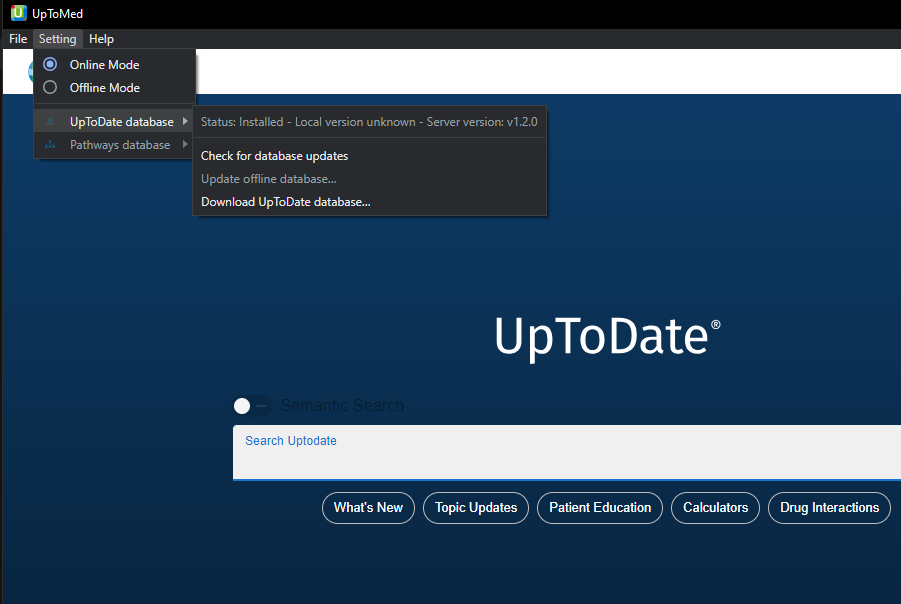
The Setting menu contains mode selection, database status, update checking, and the database download command.
4.Switch to Offline Mode and test access
Select Setting → Offline Mode . Disconnect from the internet, browse to a topic, and confirm that it opens. (Search requires internet access; browsing does not.)
Drug Interactions opens in your operating system’s browser, while the other listed features work offline. However, search currently always requires an internet connection.
05 / Updates
When is the content updated, and how do I check?
We are making the application more user-friendly. When you open the application, you will usually be notified if a new version is available. You can also use the Setting and Help menus to check for updates.
| What you want to update | Where to go | What it means |
|---|---|---|
| Offline topic database | Setting → UpToDate database → Check for database updates | Check whether a database update is available. Follow the app’s prompts; use Update offline database… when available. |
| UpToMed application | Help → Check for updates… | Check for a new version of the Windows application. This is separate from updating topic content. |
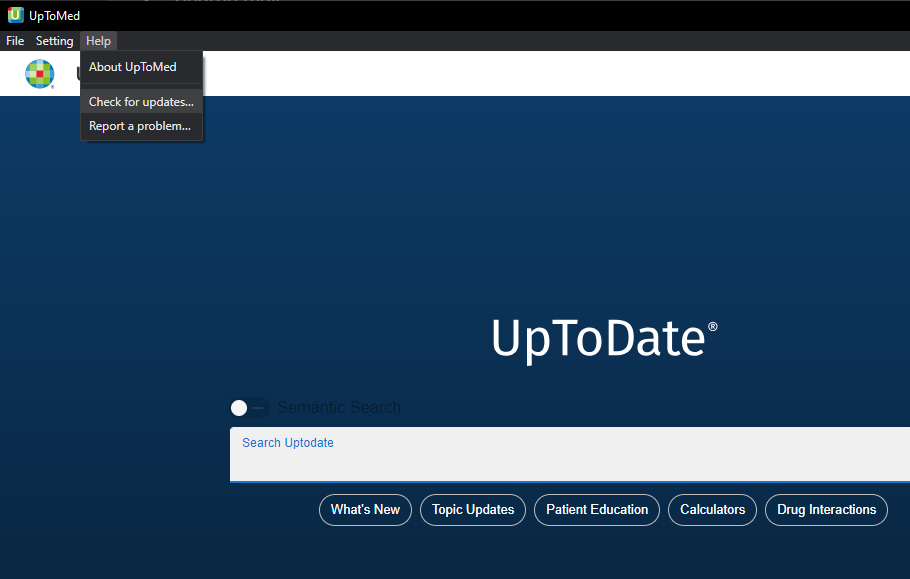
Use the Help menu for application updates, app information, and problem reporting.
06 / Navigation
Understanding the options shown in the screenshots
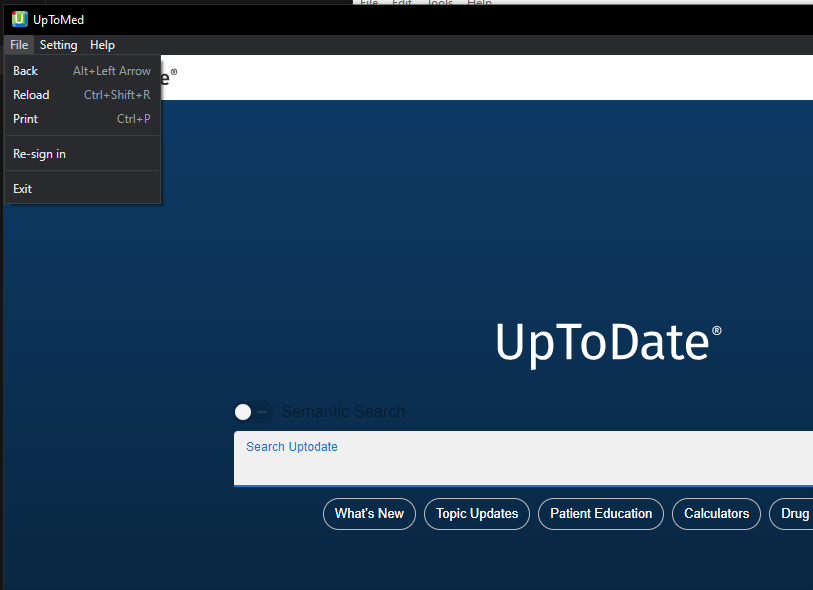
These commands and shortcuts are shown in the supplied application screenshot.
| Option in the application | Meaning |
|---|---|
| Return to the previous page | File → Back · Alt + Left Arrow |
| Reload the current page | File → Reload · Ctrl + Shift + R |
| Print the current page | File → Print · Ctrl + P |
| Start the sign-in process again | File → Re-sign in |
| Close the application | File → Exit |
| Download database again | Download the offline UpToDate database again. |
| What’s New | New content in UpToDate. |
| Topic Updates | Updated topics. |
| Patient Education | Patient education resources. |
| Calculators | Clinical calculators. |
07 / Browsers
How to use on browsers
Use UpToMed in modern web browsers on Windows, macOS, Linux, Android, iPhone and iPad. The browser interface is designed for desktop and mobile screens, including Chrome, Firefox, Edge, Safari and other modern browsers.
- Open utd.libook.xyz in your browser.
- Sign in if prompted, then enter a topic or keyword in the search field.
- Choose a result to open and read the topic. You can return to the same website from another supported device.
Browser access requires an internet connection. Use an up-to-date browser. Availability of account features depends on your access plan.
08 / Android
How to install and use UpToMed on Android
- Download the UpToMed Android APK from the supplied download link.
- Open the downloaded APK. If Android requests permission to install from this source, allow it only for the browser or file manager used for this trusted download, then follow the installation prompts.
- Open UpToMed, connect to the internet and sign in if prompted.
- Search for a topic and tap a result to read it. The current Android application works online; offline Android access is planned.
You can also use utd.libook.xyz directly in Chrome, Firefox or another modern Android browser. In Chrome, open the three-dot menu and choose Install and create shortcut, Add to Home screen or the available installation option, then follow the prompts.
09 / iPhone & iPad
How to use UpToMed on iOS
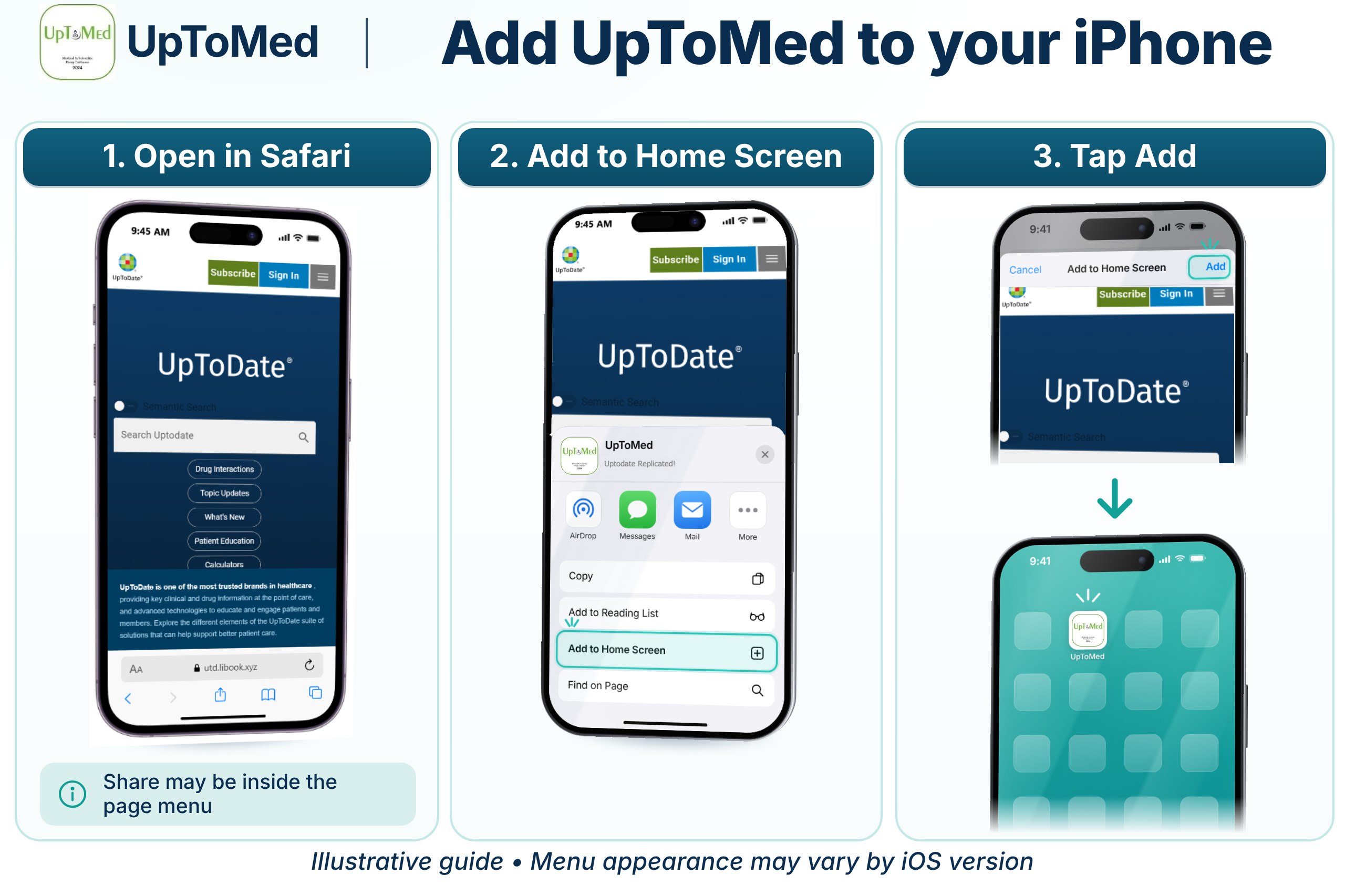
Add a website shortcut to your iPhone or iPad Home Screen for quick access to UpToMed.
- Open Safari and go to utd.libook.xyz.
- Tap Share (the square with an upward arrow). Depending on your Safari layout, open the page menu or More menu first.
- Scroll through the actions and choose Add to Home Screen. If it is missing, check Edit Actions.
- Name the shortcut UpToMed. If Open as Web App is available, turn it on, then tap Add.
- Tap the new Home Screen icon, sign in if prompted, and search for a topic.
This is a shortcut to the online service. An internet connection is required; adding the shortcut does not download an offline database. Menu appearance can vary by iOS version.
Instructions: Apple Safari user guide.
10 / Free access
Try UpToMed for free
Free browser access for a limited time: visit utd.alimed.app to use the browser service during the available free access period.
UTD Free 2026 for Windows: get the free Windows software at alimed.app/utdfree2026. It is available for permanent free use with the October 2026 database.
The permanent free offer refers to this Windows release and its October 2026 database. It does not mean permanent free browser access or automatic access to future database releases.
11 / Help & answers
What should I do if something does not work?
Yes! it’s usable for every where and every time.
We update our databases weekly to ensure that UpToMed users always have access to the latest available medical information.
UpToMed is an exact replica of UpToDate, providing users with the same features and content available on the original platform.
No, UpToMed does not currently include AI features. However, we offer the option to purchase an our UpToDate subscription with AI capabilities. Due to the high subscription costs, we recommend UpToMed as a more affordable alternative for users.
UpToMed Advanced is equivalent to UpToDate Advanced and includes two additional features:
UpToDate Pathways: Interactive clinical decision-making guides designed to help healthcare professionals make appropriate decisions based on specific clinical questions.
Lab Interpretation: Comprehensive monographs that help users quickly interpret abnormal laboratory results and determine appropriate next steps.
Yes! Our Windows version supports offline mode, allowing users to access available content without an active internet connection.
Check that the database download finished and that Setting → Offline Mode is selected. Try another topic to determine whether the issue affects one topic or the whole database. If it persists, reconnect and inspect the database status and available updates.
Check your internet connection and free disk space. Restart the download from the Setting menu; the application will usually resume the database download from where it stopped.
This option becomes available after you download the offline database for the first time.
Select File → Reload or Ctrl + Shift + R . In Online Mode, check your connection. In Offline Mode, verify the database status. Restart the app if necessary and report a persistent problem.
Use File → Re-sign in and follow the prompts.
Select Help → Report a problem . Include your app version from Help → About UpToMed , Windows version, Online or Offline Mode, database status, the steps that reproduce the issue, and any error message. Remove patient-identifying information from screenshots or reports.
No. UpToMed is designed for people who cannot afford the original UpToDate subscription. We strive to keep you up to date through regular weekly updates and provide affordable access for people around the world.
12 / Future plans
What features are planned for future versions of UpToMed?
The online Android application is available now. See the Android installation and usage guide or use the browser version.
Dedicated applications for additional operating systems, including macOS and iOS, are planned. You can already use the browser service on these devices, and add a Home Screen shortcut on iPhone or iPad. Offline functionality for Android is also planned.
We also plan to add offline search to the application, so that in addition to browsing topics, you can find the information you need without an internet connection.
Get UpToMed for your preferred device
To order UpToMed, visit alimed.app and choose the access option that suits your needs.
Developed by the team at UpToMed.