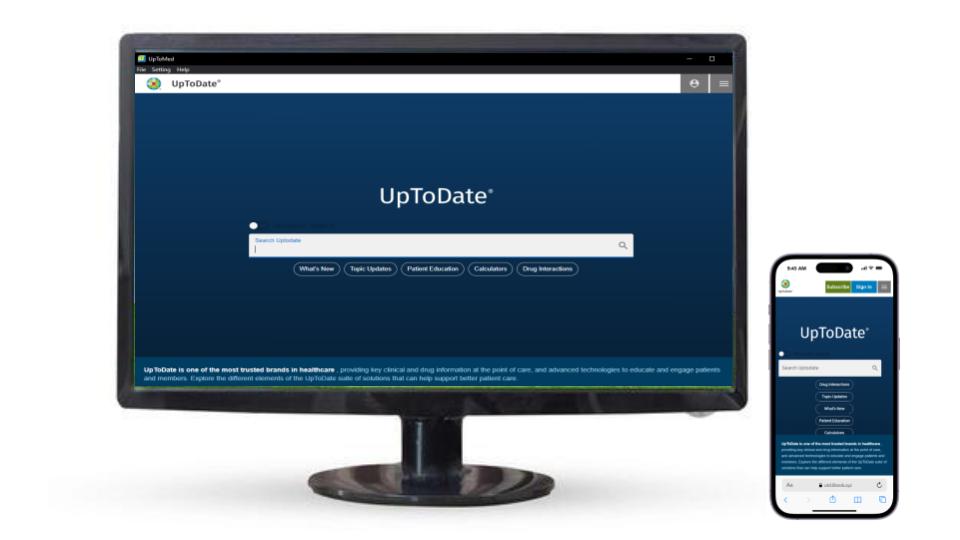
1. What is UpToMed?
UpToMed is an alternative platform for accessing UpToDate medical topics. It provides access through Windows, Android, and web browsers.
2. Which devices can I use UpToMed on?
You can use UpToMed on Windows and Android devices, as well as through modern web browsers. On iPhone and iPad, you can access the browser version and add it to your Home Screen.
3. Does UpToMed work offline?
The Windows version allows you to read downloaded medical topics offline. However, searching and some tools still require an internet connection.
4. Is offline access available on Android?
The current Android application works online. Offline functionality for Android is planned for a future version.With Uptomed, you can access UpToDate through any web browser on any device. In addition, we offer dedicated Windows software and an Android application, providing convenient access across multiple platforms.
5. How do I install UpToMed on Windows?
Download the Windows installer, open the .exe file, and follow the installation instructions. Once the installation is complete, open UpToMed.
6. How can I use UpToMed on Android?
Download the Android APK, open the downloaded file, and follow the installation instructions. Then open the application, connect to the internet, and sign in if prompted.
7. Can I use UpToMed on my iPhone or iPad?
Yes. Open the UpToMed browser service in Safari, tap the Share button, and select “Add to Home Screen” to create a shortcut on your device.
8. Are dedicated iOS and macOS applications available?
Dedicated applications for iOS and macOS are planned. In the meantime, you can access UpToMed through a browser.
9. Is there a free version of UpToMed?
Yes. The code describes a Windows release called UTD Free 2026, which is available for permanent free use with the October 2026 database. Limited-time free browser access is also mentioned.
10. How can I order UpToMed?
To order UpToMed, visit alimed.app and choose the access option that suits your needs.