UpToMed for Windows: Read UpToDate Topics Offline on Your PC
A practical guide to the UpToMed Windows application: what it offers, where an internet connection is still required, how to install it, and what UpToMed Advanced adds through UpToDate Pathways and Lab Interpretation Monographs.
UpToMed for Windows is a desktop application that provides access to UpToDate topics through an alternative access platform, with features and enhancements developed by the UpToMed team. For clinicians, residents and students who work on a Windows computer, its most practical advantage is that topics can be read offline once the database has been downloaded.
The picture is more nuanced than “online versus offline”, however. Searching still requires an internet connection, the current Android app works online only, there is no built-in AI feature, and free access comes with specific conditions. An optional UpToMed Advanced experience adds two decision-support tools: UpToDate Pathways and Lab Interpretation Monographs.
This guide explains the features, limitations, Windows installation process and Advanced tools, based on the information published by UpToMed and AliMed. UpToMed is not an official UpToDate application, and nothing in this article is medical advice.
UpToMed is a platform that provides access to UpToDate topics through an alternative route. The original UpToDate software is a paid product; UpToMed describes itself as a more affordable alternative, designed for people who cannot afford the original subscription, and states that its databases are updated weekly.
Windows is the platform where UpToMed works most like a traditional desktop reference. The application installs from an .exe file, can download a topic database, and can then be switched to Offline Mode for reading. UpToMed is also available through a web browser, an Android app and, on iPhone and iPad, a Home Screen shortcut to the browser version. Those options are online services, so this guide mentions them only where they help explain differences from Windows.
Independent service.
UpToMed is not an official UpToDate application. Treat it as an alternative access platform, and rely on your own professional judgment and local protocols when using any clinical reference.
PILLAR 1 · FEATURES
UpToMed Features on Windows
What the Windows application can do, and what each capability means in everyday use.
Access to UpToDate topics
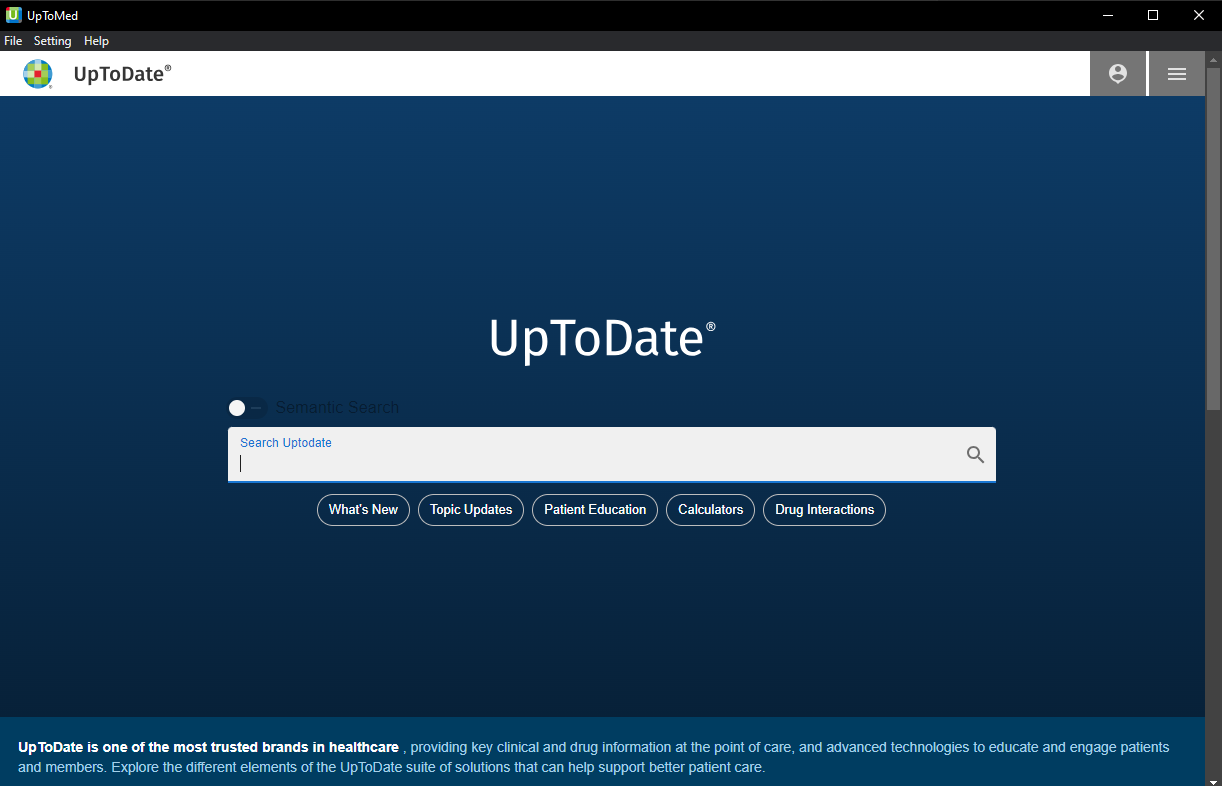
Read UpToDate topics inside a dedicated Windows application. The app also includes sections such as What’s New, Topic Updates, Patient Education and Calculators.
Search and browse
Type a clinical term, for example “hypertension”, into the main search field on the home screen, submit it with the search icon and open a topic from the results. Search needs an internet connection.
Offline database
Download the topic database once while connected, then switch to Offline Mode to browse and read topics without internet access. Installing the app and downloading the database are separate steps.
Built-in sections and tools
What’s New, Topic Updates, Patient Education, Calculators, Pathways and Lab Interpretation are listed as working offline. Drug Interactions opens in your operating system’s browser instead. Pathways and Lab Interpretation belong to UpToMed Advanced.
Separate database and app updates
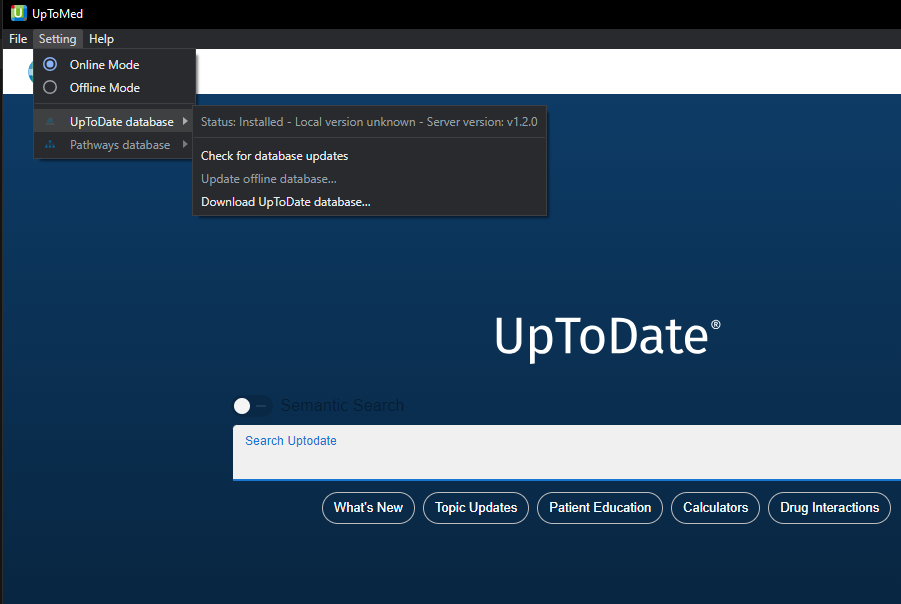
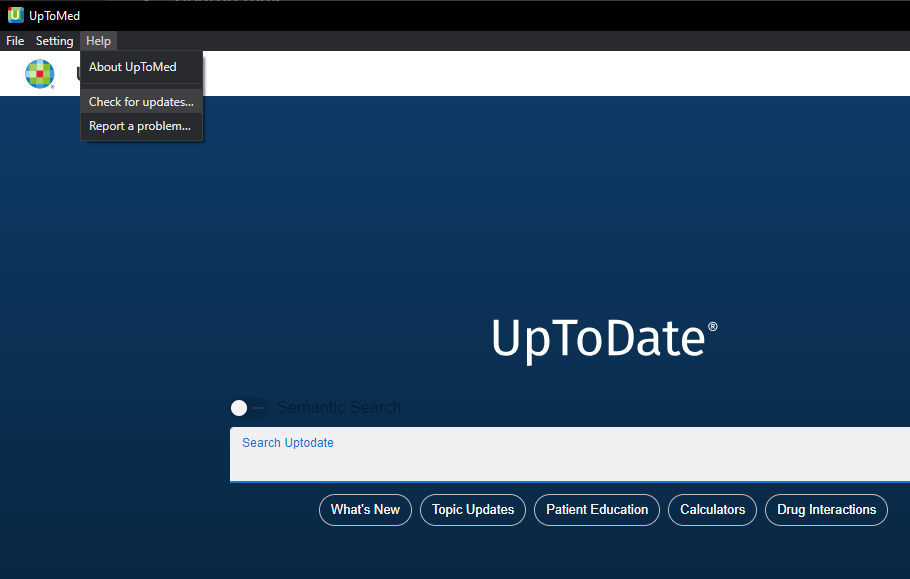
Check for database updates from the Setting menu and for application updates from the Help menu. The app usually notifies you when a new version is available. UpToMed states that its databases are updated weekly.
Familiar desktop navigation
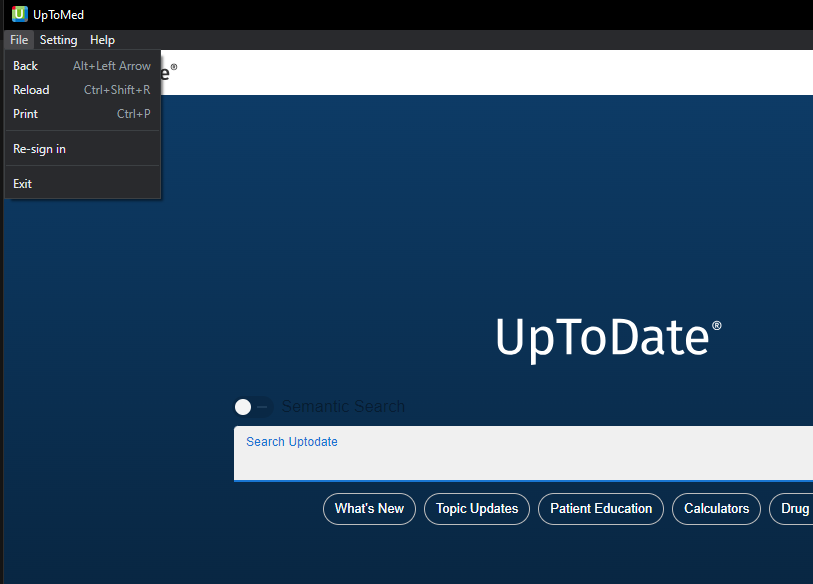
The File menu offers Back (Alt + Left Arrow), Reload (Ctrl + Shift + R), Print (Ctrl + P), Re-sign in and Exit. The Help menu provides update checks, app information and a problem-report option.
A related free Windows release.
AliMed also publishes UTD Free 2026, a separate free Windows application with an October 2026 database. It is a different release from UpToMed; see the free-access conditions in the limitations below, or the UTD Free 2026 page.
PILLAR 2 · LIMITATIONS
UpToMed Limitations You Should Know
Offline reading is not the same as fully offline operation. These limits are worth understanding before you install.
Windows capabilities: what works offline, what needs internet, and what is not available
Capability
Status
What it means
Reading downloaded topics
Available offline
Requires a completed database download and Offline Mode.
Browsing topics
Available offline
Browsing does not require internet access once the database is installed.
Search
Needs internet
Search always requires an internet connection, including in Online Mode.
First database download
Needs internet
Stay connected until the download and installation finish, and make sure there is enough free disk space.
Drug Interactions
Opens in browser
Opens in your operating system’s browser; the other listed sections work offline.
Offline search
Planned
Described as a planned feature, not available now.
Built-in AI features
Not available
UpToMed does not currently include AI features.
Android offline access
Planned
The current Android app works online; offline access is planned.
Dedicated macOS and iOS apps
Planned
For now, use the browser version; on iPhone and iPad a Home Screen shortcut is possible, but it needs internet and does not download a database.
Search needs internet
Even with the database installed, you must be online to search. Offline use means opening and reading topics you can already navigate to.
Free access is conditional
Free browser access is available only for a limited period. The permanent free offer applies to the separate UTD Free 2026 Windows release with the October 2026 database, not to future database releases. That release can be used for 10 days without signing in; signing in once with an account activates permanent access to that version’s database.
Platform coverage is still growing
Android is online-only for now, and dedicated macOS and iOS apps are planned. Windows is currently the only platform with a downloadable offline database.
No built-in AI
UpToMed does not currently include AI features. AliMed separately lists an UpToDate subscription option with AI capabilities, which it describes as costlier.
Features depend on your access option
Availability of account features depends on your access plan. Do not assume every option includes UpToMed Advanced content; check before you buy.
An independent platform
UpToMed is not an official UpToDate application, and the sources do not claim it matches the original service in every respect. Note the content date of any offline database you use.
Use it as a reference, not a decision-maker.
UpToMed is a medical information access tool. It does not replace independent professional judgment, local protocols or patient-specific assessment.
PILLAR 3 · ADVANCED
UpToMed Advanced Features
UpToMed Advanced is described as equivalent to UpToDate Advanced. It is not a separate topic database: it builds on the core topics and adds two decision-support tools.
UpToDate Pathways
Pathways are interactive clinical guides for specific questions. They help users work through decision points using patient-specific variables, such as comorbidities and clinical presentation, while drawing on UpToDate content, society guidelines and the literature.
Useful when: a condition has several diagnostic, treatment or management options and you want a more structured route through the decision.
UpToDate Lab Interpretation Monographs
These focused monographs help users interpret abnormal laboratory results: what an unexpected finding may mean, when urgent attention may be needed, and what evaluation or next steps may be appropriate.
Useful when: an abnormal test result needs fast, evidence-informed clinical context.
1. Search a clinical question
Start with the core evidence-based UpToDate topic.
2. See relevant Advanced content
Pathways and Lab Interpretation appear within search results when relevant.
3. Explore the next decision
Use guided pathways or focused monographs alongside clinical judgment.
Standard topics compared with UpToMed Advanced
Content
Core UpToMed topics
UpToMed Advanced
Core UpToDate topics
Included
Included (Advanced builds on them)
UpToDate Pathways
Not part of the core topic content
Added
Lab Interpretation Monographs
Not part of the core topic content
Added
Availability.
UpToMed Advanced is offered as a separate access option on UpToMed’s order page, and Pathways and Lab Interpretation are listed among the Windows features that work offline. Advanced content is not guaranteed in every access option, so confirm what your chosen option includes before purchasing.
INSTALLATION
How to Install UpToMed on Windows
UpToMed for Windows is installed from an .exe file. The sources do not list minimum Windows versions or disk-space requirements, so check your free storage before the database download.
1
Get the installer
The Windows application is distributed as an .exe installer. UpToMed publishes the download link on its product and guide pages; it is repeated below. Download the file only from a link published by UpToMed or AliMed.
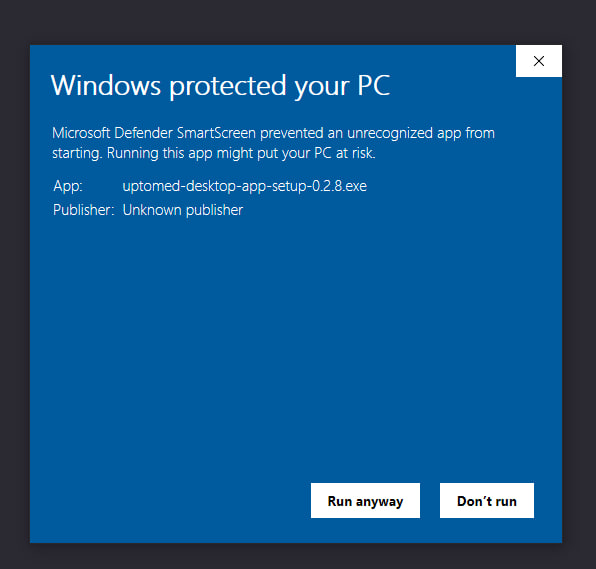
Confirm that the installer came from the intended UpToMed source. Windows may label it with an Unknown publisher, as shown in the screenshots below, so source verification matters.
3
Run the setup file
Run the downloaded .exe file and follow the installation prompts. When installation is complete, open UpToMed.
4
If Windows shows “Windows protected your PC”
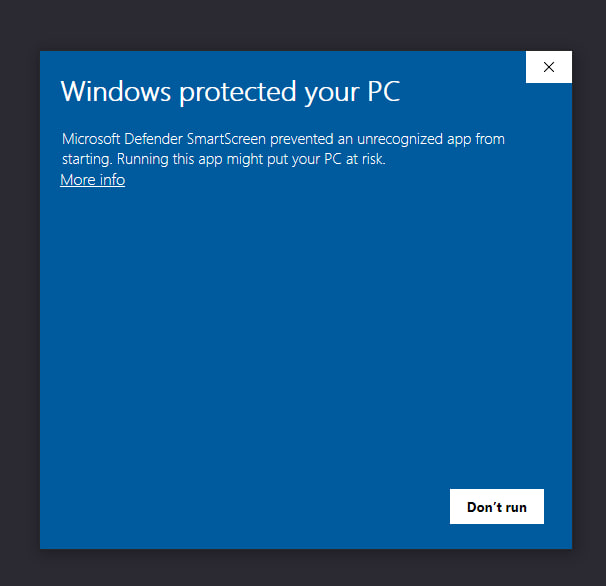
This is a Windows SmartScreen warning for an unrecognized app. It does not by itself prove the file is safe or unsafe. Select More info to review the installer details. Choose Run anyway only if you have verified the source and trust the file; otherwise select Don’t run.
A. Select More info to view the installer details.
B. Run anyway appears only after More info. Use it only for a verified installer.
5
Open the app and stay connected for first-time setup
Keep the computer online for sign-in, if prompted, and for the first database download. Installing the application and downloading the database are two separate steps, so offline reading is not available until the database download is complete.
DAILY USE
How to Use UpToMed on Windows
The documented workflow after installation, using only features described in UpToMed’s guide.
Connect to the internet, open UpToMed and select Setting → Online Mode. Search requires an internet connection.
Enter a clinical term or topic title in the main search field in the centre of the home screen, for example hypertension.
Submit the search with the search icon, then select the relevant topic from the results.
Read the topic, or explore What’s New, Topic Updates, Patient Education and Calculators. Pathways and Lab Interpretation are part of UpToMed Advanced.
Use the File menu to go back, reload, print or sign in again, and the Help menu to check for updates or report a problem.
The main search field is in the centre of the home screen.
File menu commands and shortcuts shown in the application
Action
Where to find it
Shortcut
Return to the previous page
File → Back
Alt + Left Arrow
Reload the current page
File → Reload
Ctrl + Shift + R
Print the current page
File → Print
Ctrl + P
Start the sign-in process again
File → Re-sign in
None shown
Close the application
File → Exit
None shown
The File menu commands and shortcuts.
Reporting a problem.
Select Help → Report a problem. Include the app version (Help → About UpToMed), your Windows version, Online or Offline Mode, the database status, the steps that reproduce the issue and any error message. Remove patient-identifying information from screenshots or reports.
OFFLINE ACCESS
Offline Access and Database Updates
Download the database once, then read topics offline. Search and the first download still need internet.
1
Connect to the internet
Stay connected during the initial database download, with enough free disk space.
2
Start the download
Open Setting → UpToDate database → Download UpToDate database… and follow the prompts.
3
Wait until it is ready
Let the download and installation finish, then check the database status in the same submenu.
4
Switch to Offline Mode and test
Select Setting → Offline Mode, disconnect, and confirm that a topic opens. Browsing works offline; search does not.
Two separate steps.
Installing the application does not download the topics. Complete the database download before expecting offline topic access.
Works offline
Reading and browsing downloaded topics
What’s New
Topic Updates
Patient Education
Calculators
Pathways and Lab Interpretation (UpToMed Advanced)
Needs internet or another app
Search, always
The first database download
First-time sign-in
Drug Interactions, which opens in your operating system’s browser
Updating UpToMed on Windows
What you want to update
Where to go
What it means
Offline topic database
Setting → UpToDate database → Check for database updates
Checks whether a database update is available. Follow the prompts, and use Update offline database… when available. That option appears after the first offline database download.
UpToMed application
Help → Check for updates…
Checks for a new version of the Windows application. This is separate from updating topic content.
The Setting menu: mode selection, database status, update checking and database download.
The Help menu: application updates, app information and problem reporting.
It is a Windows desktop application that provides access to UpToDate topics through an alternative access platform. It can download a topic database for offline reading, while search remains online.
UpToMed access options are listed on the AliMed order page. AliMed separately offers UTD Free 2026, a free Windows release with permanent use of its October 2026 database. Free browser access is available only for a limited time, and the permanent free offer does not cover future database releases.
Yes, on Windows. After you download the database, you can switch to Offline Mode and read topics without internet access. The current Android app works online only.
Go to Setting → UpToDate database → Check for database updates and follow the prompts. UpToMed states that its databases are updated weekly. Update offline database… becomes available after your first offline database download.
UpToMed Advanced is equivalent to UpToDate Advanced. It is not a separate topic database: it builds on the core topics and adds UpToDate Pathways and Lab Interpretation Monographs.
This is a SmartScreen warning for an unrecognized app. Verify that the installer came from UpToMed or AliMed. Select More info to review the details, and choose Run anyway only if you trust the file; otherwise select Don’t run.
Check that the database download finished and that Setting → Offline Mode is selected. Try another topic to see whether the problem affects one topic or the whole database. If it persists, reconnect and check the database status and available updates.
Check your internet connection and free disk space, then restart the download from the Setting menu. The application will usually resume from where it stopped.
CONCLUSION
Conclusion: UpToMed for Windows in Practice
UpToMed for Windows suits users who want a desktop application with a downloadable database, so that topics can be read without an internet connection. Its limits are just as important: search always needs internet, offline search is only planned, there is no built-in AI, free access is conditional, and other platforms are online-only for now.
UpToMed Advanced adds UpToDate Pathways and Lab Interpretation Monographs on top of the core topics, where your access option includes them. Whichever option you choose, treat UpToMed as an information resource that supports, and never replaces, independent professional judgment.
Strengths
Offline reading after a database download, familiar desktop navigation, and separate database and app updates.
Limitations
Online-only search, conditional free access, no built-in AI, and platforms still being developed.
Advanced tools
Pathways and Lab Interpretation Monographs extend the core topics for structured decisions and lab results.
This article describes software functionality only. It is not medical advice and does not replace professional clinical judgment, local protocols or patient-specific assessment.