Free to use. Yours to keep.
Take UpToDate for Free.Lifetime, Anywhere and Anytime.
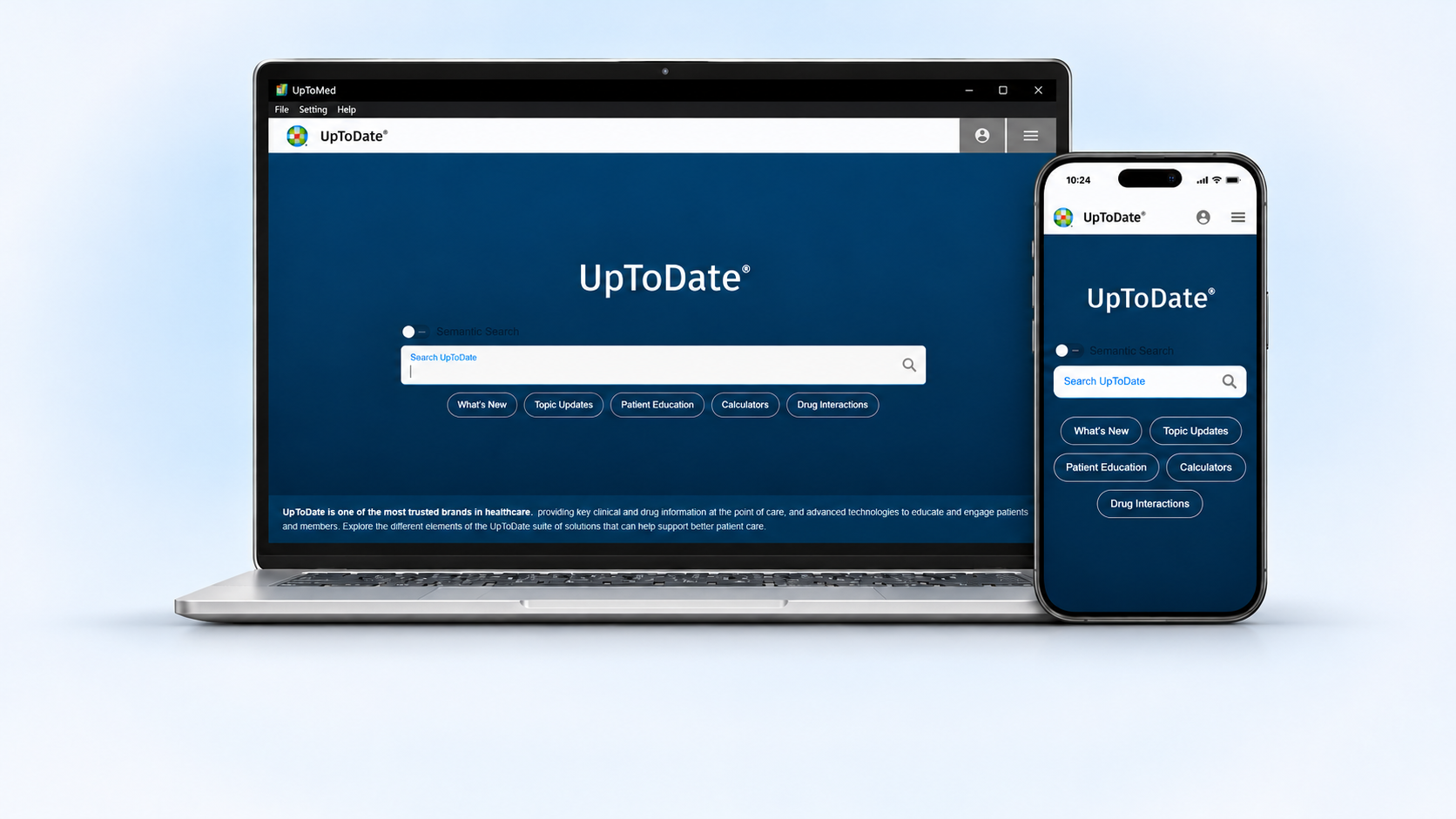
UTD Free 2026 is a free web-based and application-based platform that provides replicated UpToDate content across multiple devices and operating systems.
01 / About the software
Free, lifetime access to UpToDate
About UTD Free
UTD Free is a free web-based and application-based platform that provides replicated UpToDate content across multiple devices and operating systems.
You can access it through Windows Desktop, any web browser on any device, Telegram Bot, Android, and iOS.
The Windows Edition includes a dedicated database containing UpToDate content, last updated on October 27, 2026. Simply download the database once to access and read its content anytime, anywhere — even without an internet connection.
Please note: While the database content is available offline, the search functionality requires an active internet connection.
Free, permanent access to UpToDate
Use the WIN application for 10 days without signing in. For permanent free access to this version’s database, create an account and sign in once from within the application.
Free application updates
Updates to the application itself are free, and new features will be released. If you need a newer edition of the UpToDate content, you can purchase it from the store.
02 / Installation and setup
Install the software step by step
1. Download the installer
Download UTD Free 2026 for Windows using the software installation link.
2. Install and launch the application
Run the downloaded .exe file and follow the installation steps. Once installation is complete, open UTD Free 2026 and connect to the internet for the initial setup.
If you see “Windows protected your PC”
This is a Windows SmartScreen warning for an unrecognized application. First, make sure you downloaded the installer from a trusted source. Select “More info” and review the installer details. If you trust the file, choose “Run anyway” to continue installation. Otherwise, select “Don’t run”.
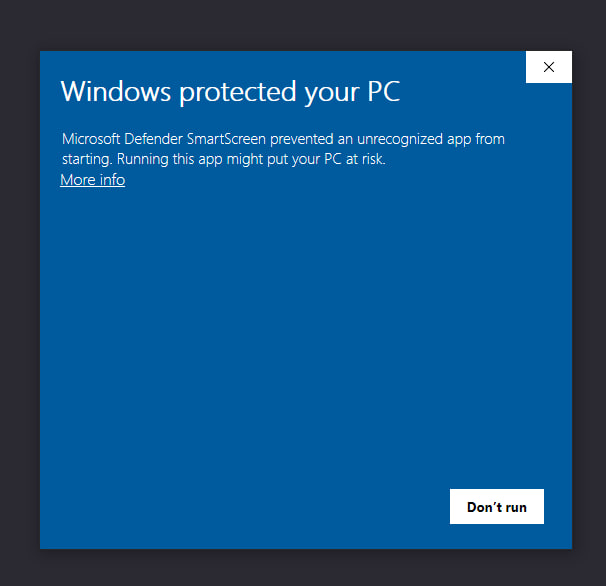
A. Select More info to view the installer details.
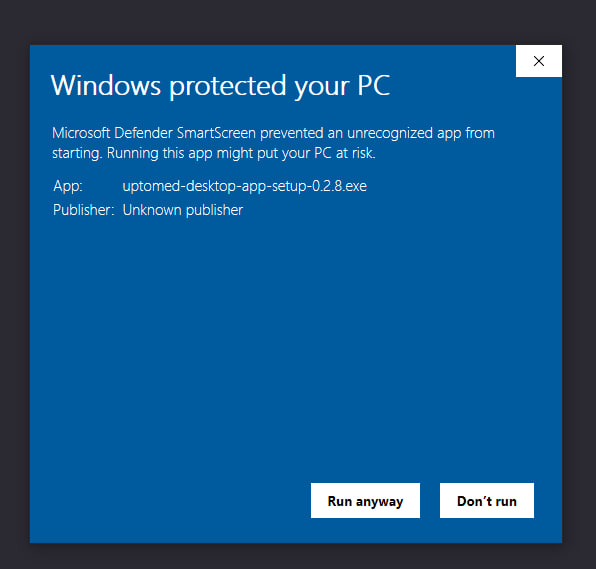
B. Now select Run anyway.
3. Download the database from the welcome screen
After launching the application, you will see the welcome screen. Select “Download database” to download the approximately 2.3 GB database. It contains UpToDate topics, and the download and preparation must be completed before you can continue using the application.
Stay connected to the internet until the download and preparation are complete. You can then read the database content offline; search remains online.
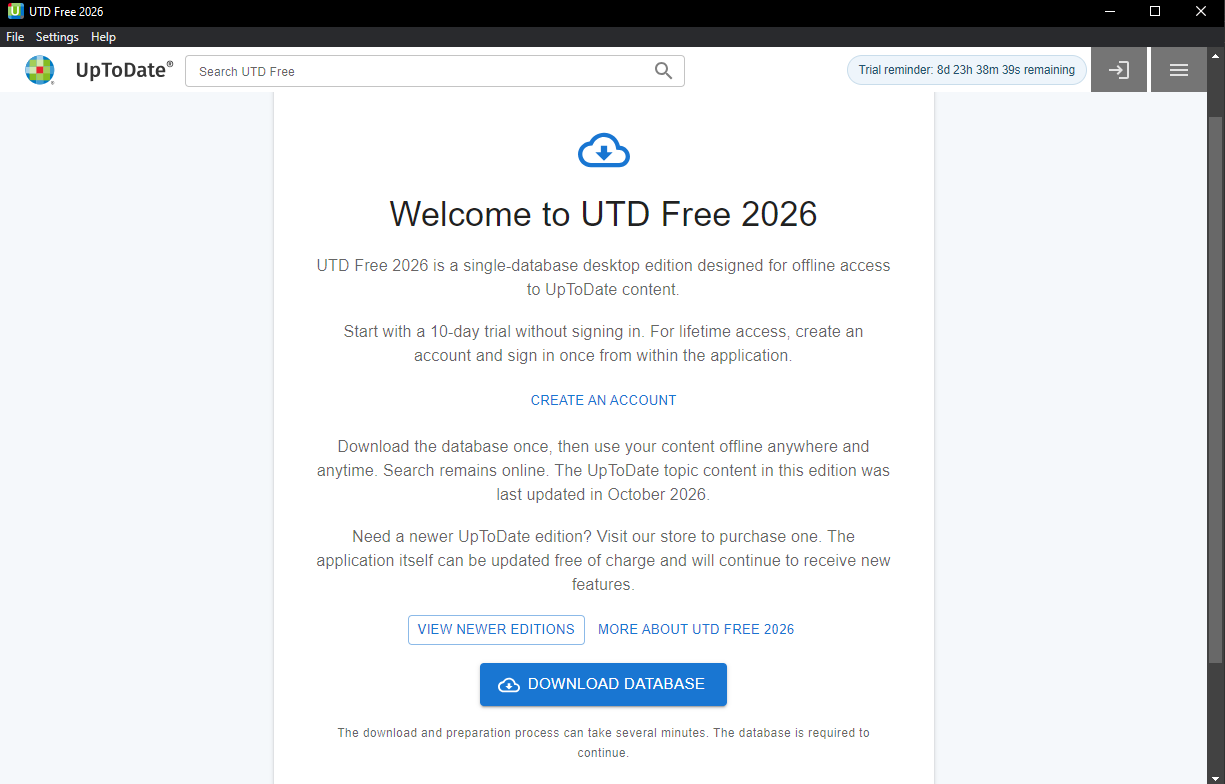
The application’s welcome screen, where you can create an account and download the database.
4. Check the database status
Open the UTD Free database section from the Settings menu. After installation is complete, check that the status is “Installed” and the date is October 27, 2026. In the example screenshot, the content mode is set to “Offline”.
5. Search and read
Connect to the internet to search for a topic. Once the database has been downloaded, its content can be read offline.
6. Create an account for continued use
For continued use and permanent free access, select “Create an account” on the application’s welcome screen.
7. Sign in from within the application
After registering, return to the application and use the sign-in option next to the countdown timer. Signing in once from within the application activates permanent free access to this version’s database.
03 / Offline content
UpToDate database updated in October 2026
To get started, download the database once while connected to the internet. Downloading and preparation may take a few minutes, and the database is required to continue using the application.
In the application screenshot, the database status is “Installed”, its size is approximately 2,307 MB, and its date is October 27, 2026. Make sure your device has enough free storage for the download and preparation.
Reading: Offline | Search: Online
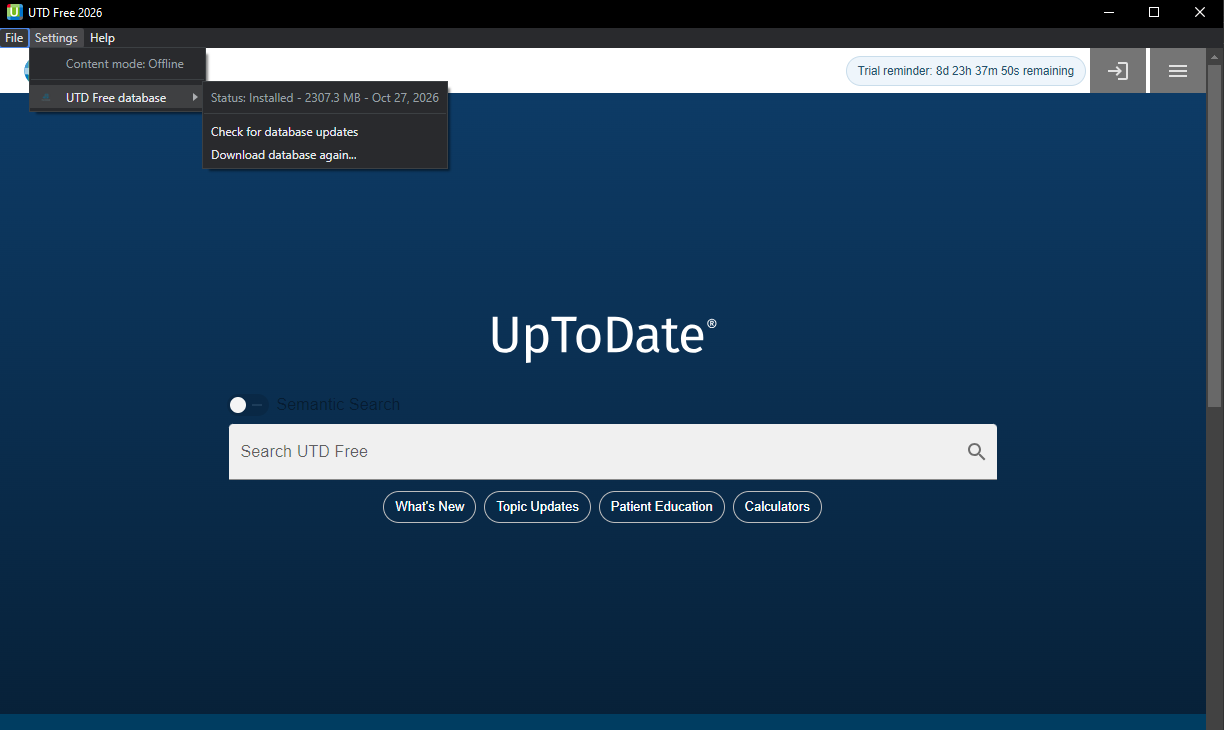
The Settings menu shows the offline content mode and database status.
04 / Application interface guide
Understanding the options shown in the screenshots
| Option in the application | Meaning |
|---|---|
| File / Settings / Help | Application menus: File, Settings and Help. |
| Search UTD Free | Search UpToDate topics. |
| Trial reminder | Reminder of the time remaining in the trial period. |
| Content mode: Offline | Content is available for offline reading. |
| UTD Free database / Status: Installed | The UpToDate database is installed. |
| Check for database updates | Check for updates to the UpToDate database. |
| Download database again | Download the offline UpToDate database again. |
| What’s New | New content in UpToDate. |
| Topic Updates | Updated topics. |
| Patient Education | Patient education resources. |
| Calculators | Clinical calculators. |
05 / Browsers
How to use on browsers
Use UTDfree in modern web browsers on Windows, macOS, Linux, Android, iPhone and iPad. The browser interface is designed for desktop and mobile screens, including Chrome, Firefox, Edge, Safari and other modern browsers.
- Open utd.alimed.app in your browser.
- Sign in if prompted, then enter a topic or keyword in the search field.
- Choose a result to open and read the topic. You can return to the same website from another supported device.
Browser access requires an internet connection. Use an up-to-date browser. Availability of account features depends on your access plan.
06 / Android
How to install and use UTDfree on Android
Follow these simple steps to install UTDfree on your Android device and create an account.
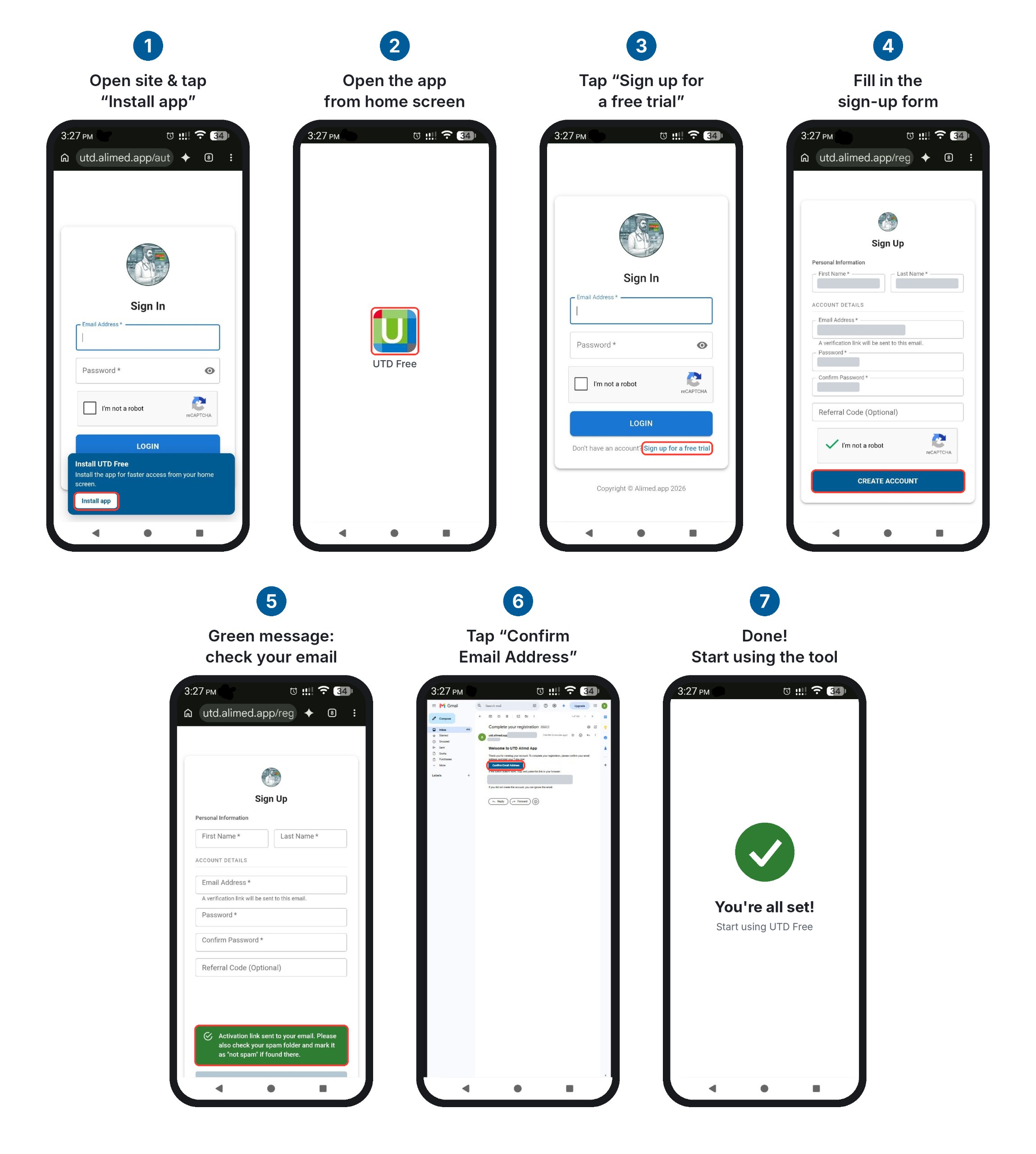
Open the Website: Open utd.alimed.app in your Android browser (preferably Google Chrome).
Install the App: Tap the Install App option when it appears on your screen.
Open UTDfree: Once installed, find the UTDfree icon on your home screen and tap it to launch the app.
Sign Up: On the login page, tap Sign up for a free trial to create a new account.
Complete the Registration Form: Enter your first name, last name, email address, and password. Confirm your password, complete the required verification, and tap Create Account.
Verify Your Email Address: After registration, a confirmation message will appear asking you to check your email. Open the confirmation email and tap Confirm Email Address.
You’re All Set! Your email is now confirmed. Return to UTDfree, sign in using your registered email address and password, and start using the application.
Enjoy UTDfree on your Android device!
07 / Telegram Bot
UTDFree on Telegram
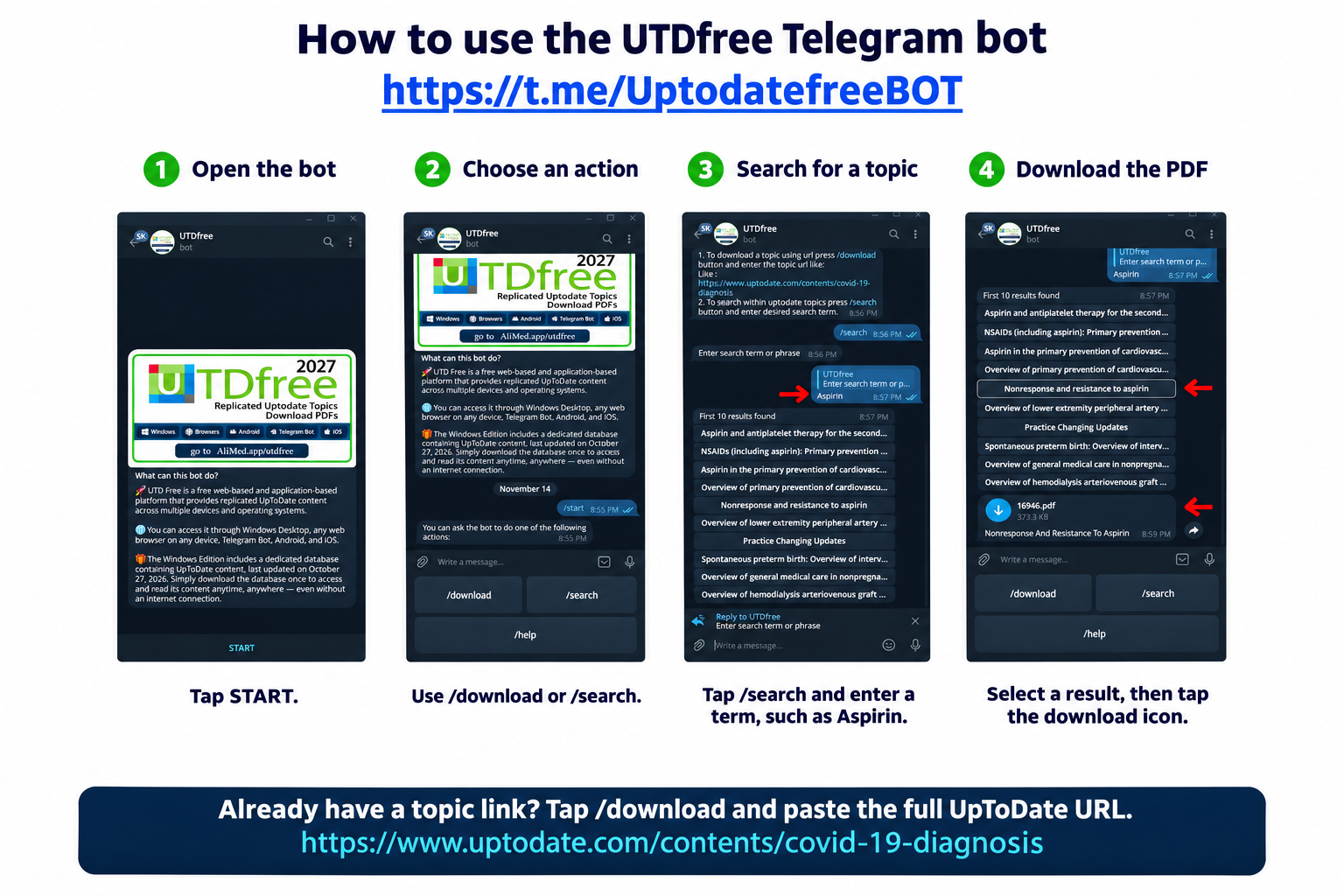
The UTD Free 2026 Telegram bot is a chat-based way to interact with the service inside Telegram.
How to use the UTDfree Telegram bot
- Open the UTDfree Telegram bot and tap Start.
- To download a topic by URL, tap
/downloadand send the full UpToDate link. For example: https://www.uptodate.com/contents/covid-19-diagnosis - To find a topic by keyword, tap
/searchand send a word or phrase, such as Aspirin. - Select a topic from the search results. When the bot sends the PDF, tap the download icon to save it.
- Limitation is 3 Topics per day
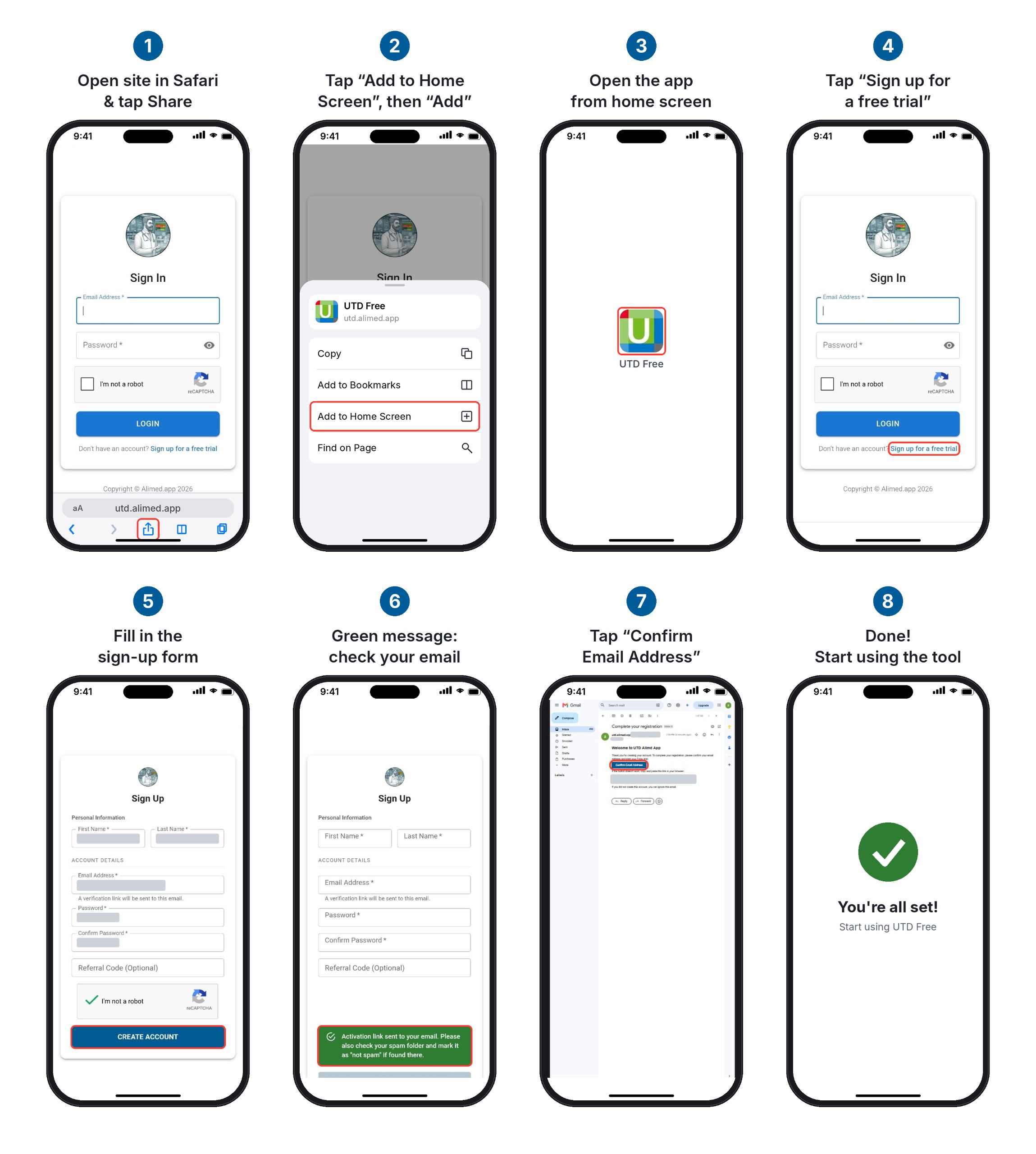
07 / iPhone & iPad
How to use UTDfree on iOS
Add a website shortcut to your iPhone or iPad Home Screen for quick access to UTDfree.
- Open Safari and go to utd.alimed.app.
- Tap Share (the square with an upward arrow). Depending on your Safari layout, open the page menu or More menu first.
- Scroll through the actions and choose Add to Home Screen. If it is missing, check Edit Actions.
- Name the shortcut UTDfree. If Open as Web App is available, turn it on, then tap Add.
- Tap the new Home Screen icon, sign in if prompted, and search for a topic.
This is a shortcut to the online service. An internet connection is required; adding the shortcut does not download an offline database. Menu appearance can vary by iOS version.
Instructions: Apple Safari user guide.
05 / Frequently asked questions
Yes. The software and permanent use of the October 2026 edition of the UpToDate database are free. For permanent access, create an account and sign in once within the application, following the instructions on this page.
No. To continue using this database edition free of charge permanently, simply create an account and sign in from within the application. The 10-day period is for use without signing in.
Downloaded content can be read offline; search remains online. Downloading the database and signing in to your account for the first time also require an internet connection.
Permanent free access applies to this version’s database. To purchase a newer edition of the UpToDate content, use “View newer editions” within the application, or visit the store through the UpToMed section at the end of this page.
Yes. Updates to the application itself are free, and it will receive new features. Keep the content date of this version’s database in mind separately.
To register, use the account registration page. The sign-in option is also available next to the countdown timer. Download the database from the Settings menu within the application.
This is usually rare. If you encounter a problem while using the application, close it and open it again.
06 / More features
UpToMed: an option with more features
If you need more features than UTD Free 2026 offers, you can use UpToMed. UpToMed is designed for online and offline access to UpToDate content. Alongside offline topic reading, it also provides access to content updates.
The free version gives you permanent access to the October 2026 database. With additional features and ongoing content updates, UpToMed is an option for users who want to purchase the paid version and access newer content.
Visit the UpToMed introduction page to learn about its features, access terms and purchase options.